Here we’ve covered many different ways to reset your
password for Windows—but what if you can’t reset your password? Or what
if you’re using drive encryption that would wipe out your files if you
changed the password? It’s time to crack the password instead.
To accomplish this, we’ll use a tool called Ophcrack that can crack your password so you can login without having to change it.
Download Ophcrack
The first thing we will need to do is download the CD image from
Ophcrack’s website. There are two options to download, XP or Vista, so
make sure you grab the right one. The Vista download works with Windows
Vista or Windows 7, and the only difference between XP and Vista is the
“tables” Ophcrack uses to determine the password.
Once the .iso file is downloaded, burn it to a CD using the guide below.
If you are going to be cracking your password on something that
doesn’t have a CD drive, such as a netbook, download the universal USB
creator from PenDrive Linux (Link Below). A USB drive will not
only run faster but you can also use a single USB drive for Windows XP,
Vista, and 7 if you copy the needed tables to the drive.
To create a USB drive that works with all versions of Windows, download the free password tables from Ophcrack’s website. Note: There are free tables available on Ophcrack’s website and
there are paid tables, the paid tables will typically get the job done
faster and will be able to crack more complex passwords but the paid
tables may not fit on a USB drive because they range in size from 3 GB
to 135 GB.
Now extract the tables to \tables\vista_free on the USB drive and they will be used automatically by Ophcrack.
Boot from CD/USB
Boot the computer from the CD or USB drive that you created. Note: On some computers you may have to go into the BIOS settings to change the boot order or push a key to show the boot menu.
Once the disk is done booting, Ophcrack should start automatically
and will begin cracking the passwords for all of the users on your
computer. Note: If the computer boots and you only have a blank screen or
Ophcrack doesn’t start, try restarting the computer and selecting manual
or low RAM options on the live CD boot menu.
If you have a complex password it will take a lot longer than simple
passwords, and with the free tables your password may never be cracked.
Once the crack is done you will see the password in plain text, write it
down and reboot the machine to login. If your password isn’t cracked,
you can also log in as one of the other users with admin rights and then
change your password from within Windows.
With the free tables available you will not be able to crack every
password, but the paid tables range from $100 to $1000
Creating wordlists with crunch v3.0
CRUNCH v3.0
Warning... this is a looong post, grab a beverage.. ;) Also heavy on images..
PRE-INTRO
Since the post on Creating wordlists with crunch v2.4 made in April last year, crunch has gone through
quite a few changes and improvements and bofh28 has now released v3.0 ! (on 16-05-2011)
To make sure that the information on this blog is staying upto date, its time for a new and improved post.
There will be a lot of duplication from my previous post on crunch, but it should then at least
be a more or less full and complete post.
I have tried to follow the alphabetical order of the options and have done a chapter per option/switch.
Please leave comments should the post be lacking information on anything you feel should be included.
INTRODUCTION
crunch is a tool for creating bruteforce wordlists which can be used to audit password strength.
The size of these wordlists is not to be underestimated, however crunch can make use of patterns to reduce wordlist sizes, can compress output files in various formats and (since v2.6) now includes a message advising the size of the wordlist that will be created, giving you a 3 second window to stop the creation should the size be too large for your intended use.
The full range of options is as follows ; -b Maximum bytes to write per file, so using this option the wordlist to be created can be split into various
sizes such as KB / MB / GB (must be used in combination with "-o START" switch) -c Number of lines to write to output file, must be used together with "-o START" -d Limits the number of consecutive identical characters (crunch v3.2) -eSpecifies when crunch should stop early (crunch v3.1) -f Path to the charset.lst file to use, standard location is '/pentest/passwords/crunch/charset.lst
to be used in conjunction with the name of the desired charset list, such as 'mixalpha-numeric-space' -i Inverts the output sequence from left-to-right to right-to-left
(So instead of aaa, aab, aac, aad etc, output would be aaa baa caa daa) -l When specifying custom patterns with the -t option, the -l switch allows you to identify which of the characters
should be taken as a literal character instead of a place holder (@,%^) -o Allows you to specify the file name / location for the output, e.g. /media/flashdrive/wordlist.txt -p Prints permutations of the words or characters provided in the command line. -q Prints permutation of the words or characters found in a specified file -r Resumes from a previous session, exact same syntax to be used followed by -r -s Allows you to specify the starting string for your wordlist. -t Allows you to specify a specific pattern to use. Probably one of the most important functions !
Place holders for fixed character sets are ; @ -- lower case alpha characters , -- upper case alhpa characters % -- numeric characters ^ -- special characters (including space) -u Supresses the output of wordlist size & linecount prior starting wordlist generation. -z Adds support to compress the generation output, supports gzip, bzip & lzma
All the below is done on backtrack 5,only tested on the 32bit versions.
crunch is not installed by default on BT5 and as yet (22-05-2011) not yet in the repo's.
(When it does hit the repo's I will amend this post to reflect installing from repo's)
Edit 12-06-2011
crunch is now available in the BT repositories,
so can download and install on backtrack5 simply by doing a ;
apt-get update
apt-get install crunch
BASIC USAGE AND CHARACTER SETS
The default installation directory / path for crunch in backtrack 5 is
/pentest/passwords/crunch/
All the below examples are based on being in the crunch directory/pentest/passwords/crunch/
To run crunch from outside of crunch's own directory use ;
/pentest/passwords/crunch/crunch [min length] [max length] [ character set] [options] example from root directory;
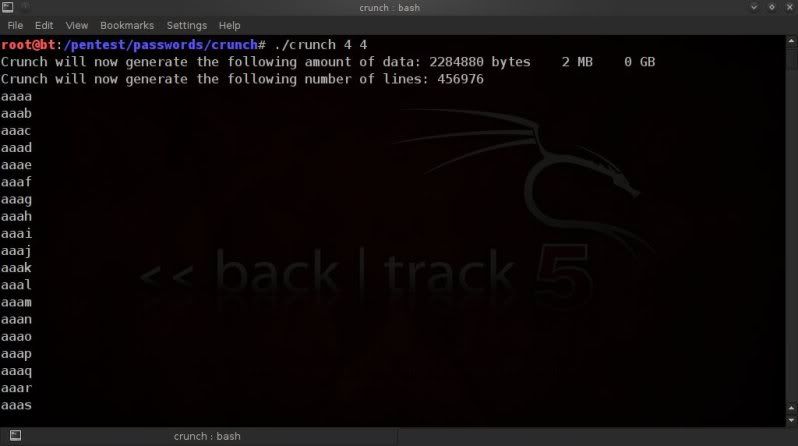
If no character set is defined, then crunch will default to using the lower case alpha character set;
./crunch 4 4
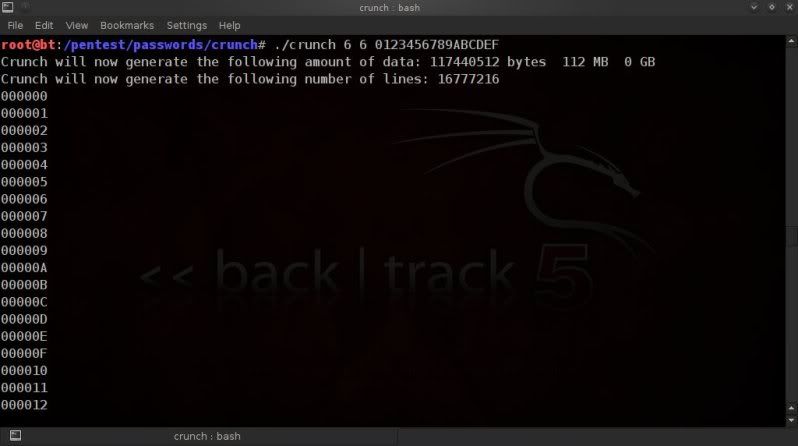
Also any desired character set can be enterered manually in the command line ; ./crunch 6 6 0123456789ABCDEF
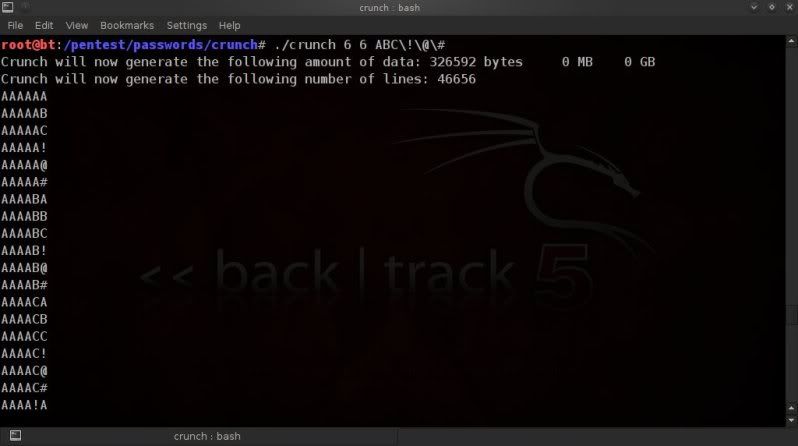
Certain characters will need escaping with a backslash\ ;
./crunch 6 6 ABC\!\@\#\$
CREATING WORDLISTS IN BLOCKS OF A CERTAIN SIZE
Using the-bswitch, we can tell crunch to create a wordlist which is split into multiple files
of user-specified sizes.
This must be done in conjunction with -o START.
The size definition can be; kb, mb, gb or kib, mib, gib
kb, mb, and gb are based on the power of 10 (i.e. 1KB = 1000 bytes)
kib, mib, and gib are based on the power of 2 (i.e. 1KB = 1024 bytes).
The output files will be named after the first and last entry in the wordlists.
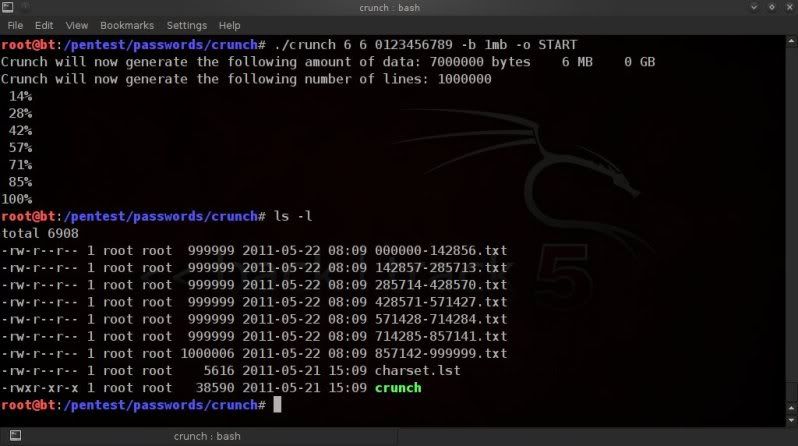
To create a wordlist split into files of not more than 1mb;
./crunch 6 6 0123456789 -b 1mb -o START
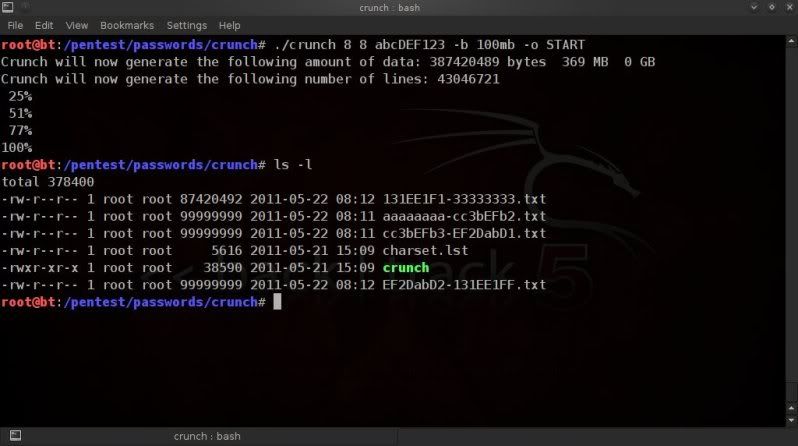
To create a wordlist split in files of no more than 100mb;
./crunch 8 8 abcDEF123 -b 100mb -o START
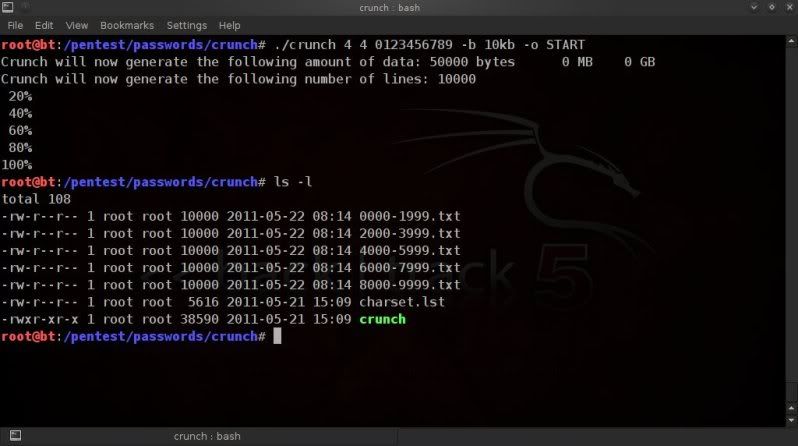
To create a wordlist split into files of no more that 10kb;
./crunch 4 4 0123456789 -b 10kb -o START
To create a wordlist split into files of no more than 2gb;
./crunch 8 8 0123456789ABCDEF -b 2gb -o START
etc.
etc.
CREATING WORDLISTS IN BLOCKS OF A CERTAIN LINECOUNT
(ie. number of passphrases per file)
Using the-cswitch you can have crunch create wordlists which do not contain more than the
specified number of lines.
This must be used in conjunction with -o START.
To create files containing no more than 200000 (200 thousand) lines (passphrases); ./crunch 6 6 0123456789 -c 200000 -o START
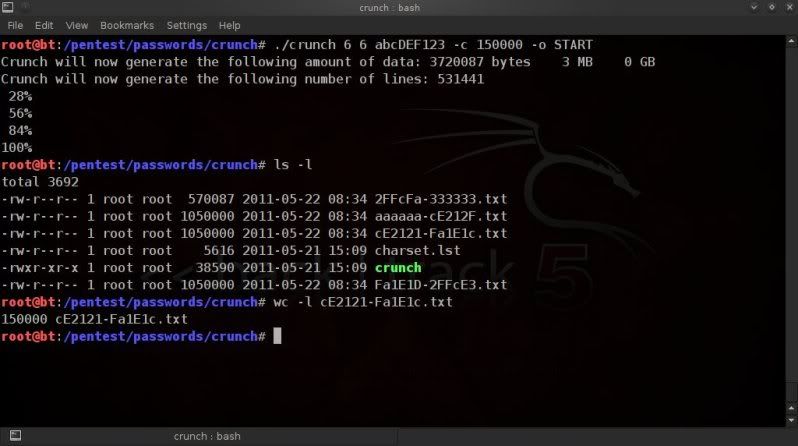
To create files containing no more that 150000 (150 thousand) lines (passphrases);
./crunch 6 6 abcDEF123 -c 150000 -o START
The output files will be named after the first and last entry in the wordlists.
STOPPING CRUNCH WORDLIST GENERATION AT A PRE-DETERMINED TIME
Crunch v3.1 is now also released (20-07-2011) and with it comes the new-eswitch.
This option allows you to specify when you want the wordlist generation to stop.
So the below example will start creating the 6 character numeric wordlist, but will stop at 333333 ; ./crunch 6 6 -t %%%%%% -e 333333
USING FIXED CHARACTER SETS
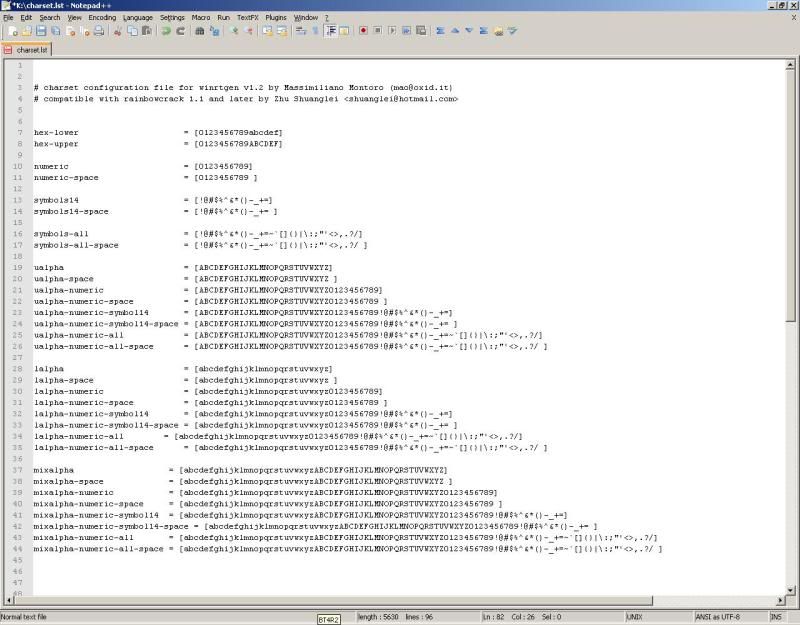
Crunch also comes with fixed character sets incharset.lstwhich is included in the installation.
(also found in directory /pentest/passwords/crunch/ )
This saves on the typing (and typoes) when dealing with standard character sets.
To use the fixed characters sets, instead of typing in character sets manually in the command line,
you can use the-fswitch to specify which character set we want to use ;
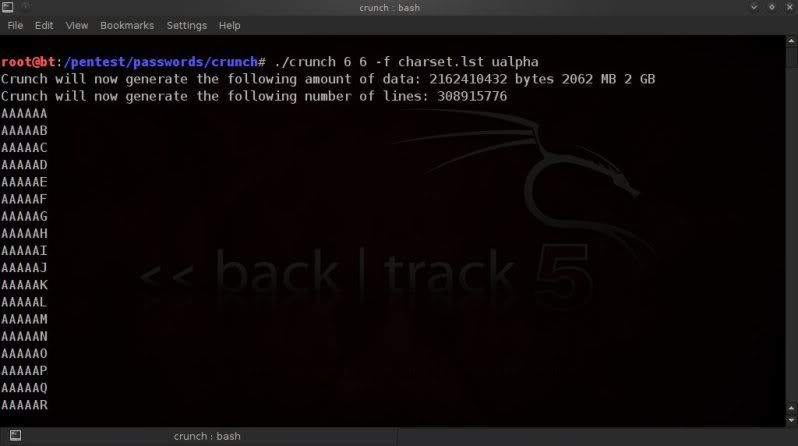
To use only upper case alpha characters;
./crunch 6 6 -f charset.lst ualpha
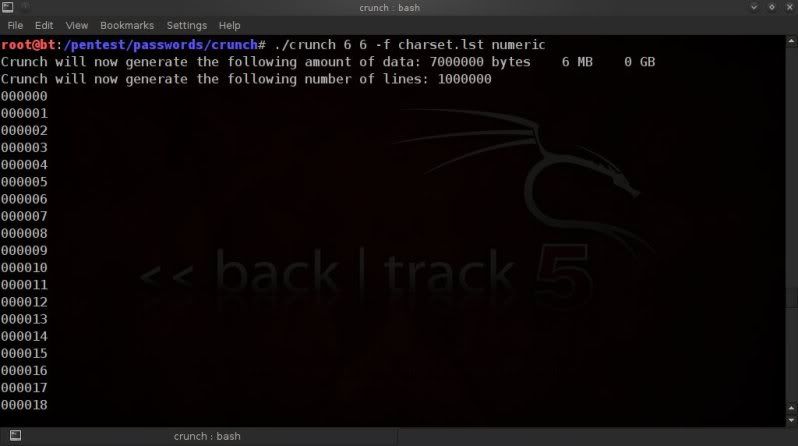
To use only numeric characters ;
./crunch 6 6 -f charset.lst numeric
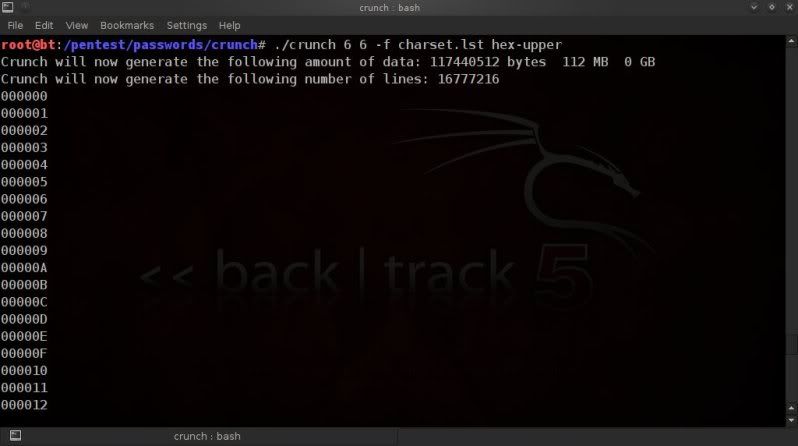
To use hexidecimal characters (with uppercase alpha values) ;
./crunch 8 8 -f charset.lst hex-upper
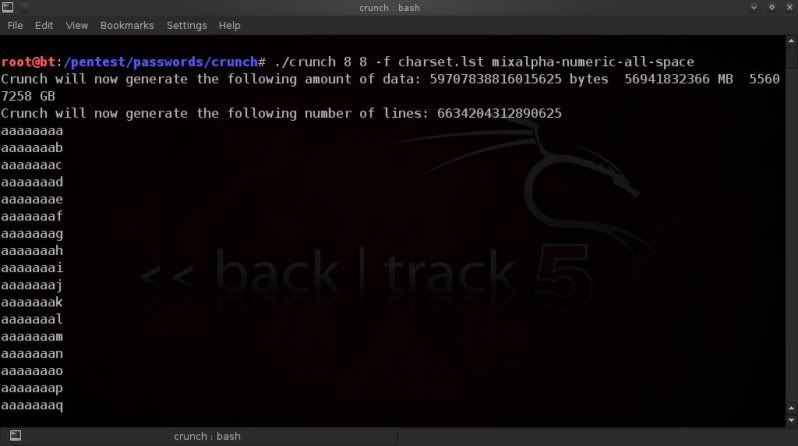
To use lower case, uppercase, numeric & special characters (beware of the size ! Don't try to save..lol..) ;
Since v2.7 additional Swedish character support has also been added for our Swedish brethren, nicely contributed by Niclas Kroon.
It should be noted that you can easily create your own custom charset by simply including a line in the same format.
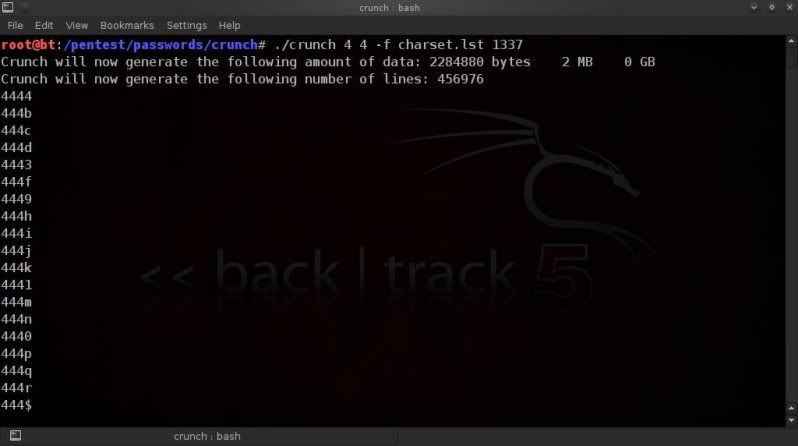
If you for instance know that your target has a certain medical condition known as 133tsp34k, and you have an idea of which letters/numbers are usually used (forum posts etc. etc.) , you could simply include an extra line such as ; 1337 = [4bcd3f9hijk1mn0pqr$7uvwxyz] Doubt the above is authentic enough, but I'm sure you get the idea.
Then just run in crunch as you would any other charset; ./crunch 4 4 -f charset.lst 1337
See/pentest/passwords/crunch/charset.lstfor all possibilities / charsets currently included.
INVERTING THE OUTPUT DIRECTION
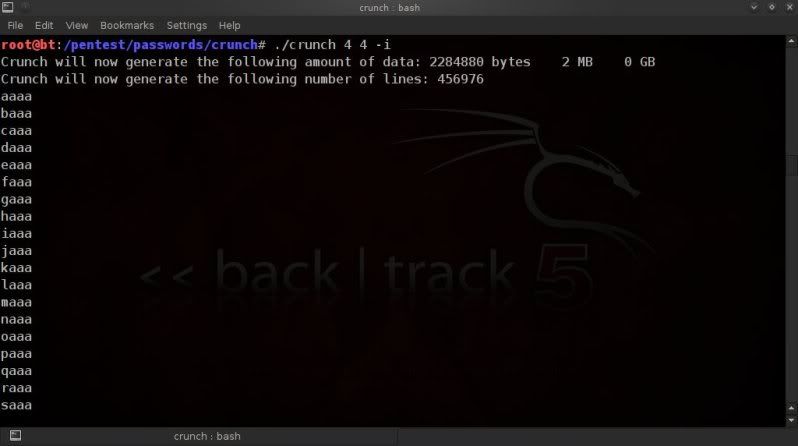
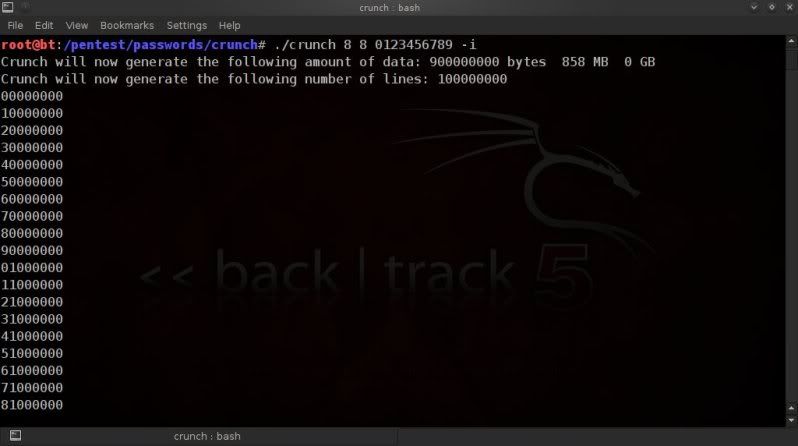
Using the-ioption will invert the direction in which the wordlist is created, fromleft-to-right to right-to-left.
Note that this does not change the content of the created wordlist, it only changes the intial direction in which it is created.
./crunch 4 4 -i
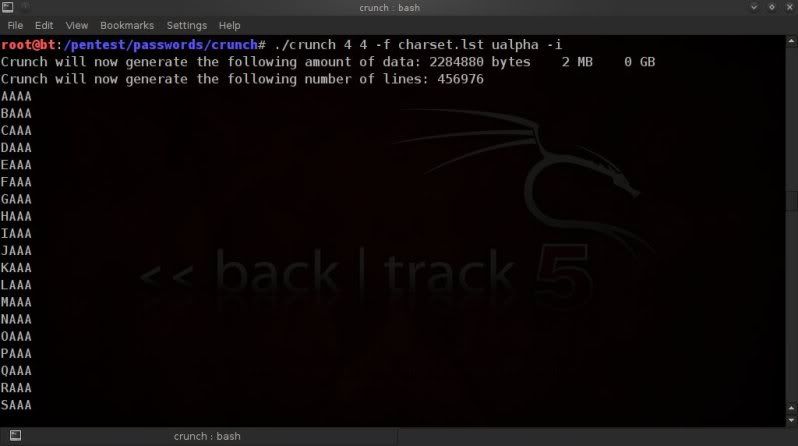
The -i option can also be used when character sets have been specified, either manually or using the pre-defined charsets. ./crunch 4 4 -f charset.lst ualpha -i
or for instance for creating numeric wordlists in an alternative direction ;
./crunch 8 8 0123456789 -i
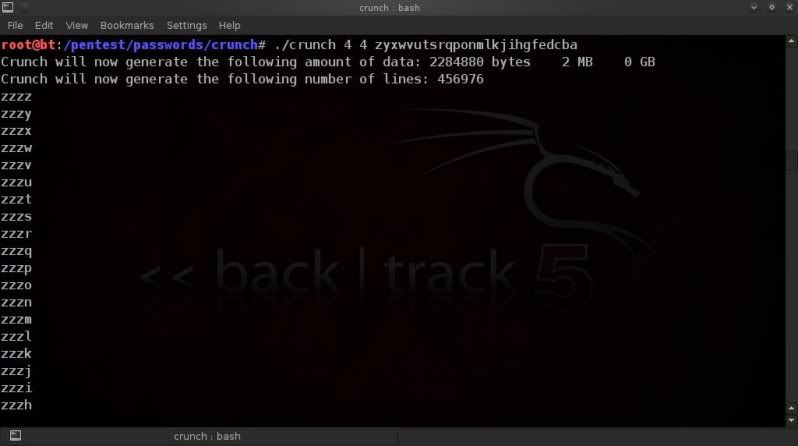
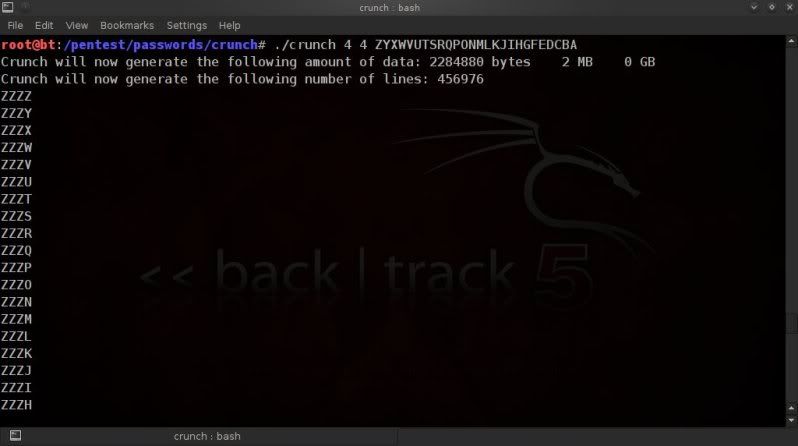
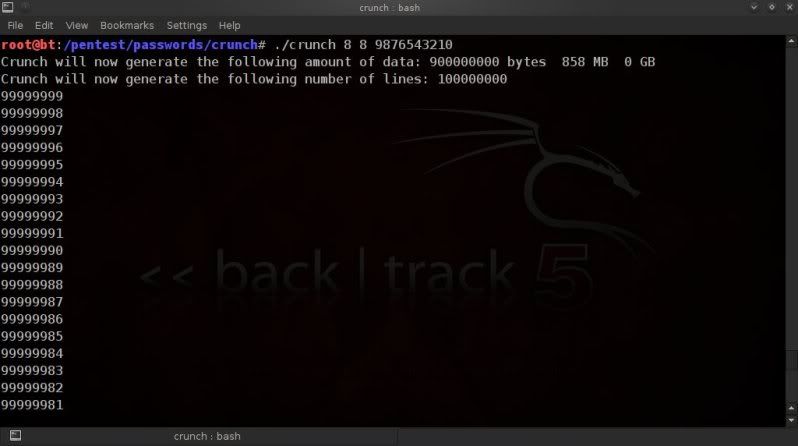
If you actually want the wordlist creation to start from the last letter in the alphabet and work backwards, or
work backwards from the last digit in a 10 digit numeric sequence, then you would have to enter the charset manually ;
./crunch 4 4 zyxwvutsrqponmlkjihgfedcba
./crunch 4 4 ZYXWVUTSRQPONMLKJIHGFEDCBA
./crunch 8 8 9876543210
CREATING PERMUTATIONS
Crunch can also be used to create permutations for either ;
> characters / words entered in the command line with the-pswitch.
> lines in a wordlist with the-qswitch
Although there is no min/max character setting, this still needs to be entered for both
the -p and -q switch.
Using the-pswitch you can create permutations of characters or of all words entered in the command line.
Creating permutations of letters (fun for anograms) ;
./crunch 1 1 -p abcd
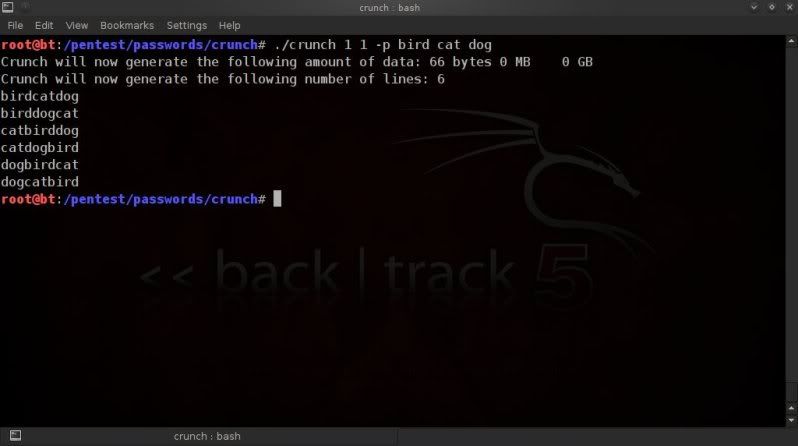
Creating permutations of lists of words; ./crunch 1 1 -p bird cat dog
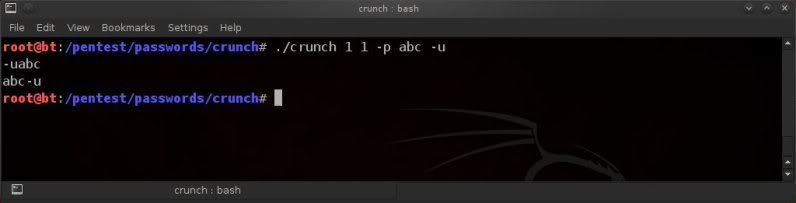
As the -p switch can read the input on command line as being letters or words, it MUST be the last option used;
If for instance trying to suppress the size output message using the -u switch and placing the -u switch last,
crunch will see 2 words (abcd+-u) and so will only print out the 2 permutation possibilities as well as actually recognizing the -u switch ; ./crunch 1 1 -p abcd -u
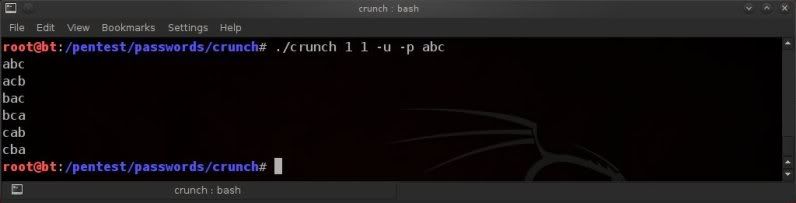
So to ensure the output is as expected, the -p switchMUSTalways be the last option, and the correct syntax
with the above example would be ;
./crunch 1 1 -u -p abcd
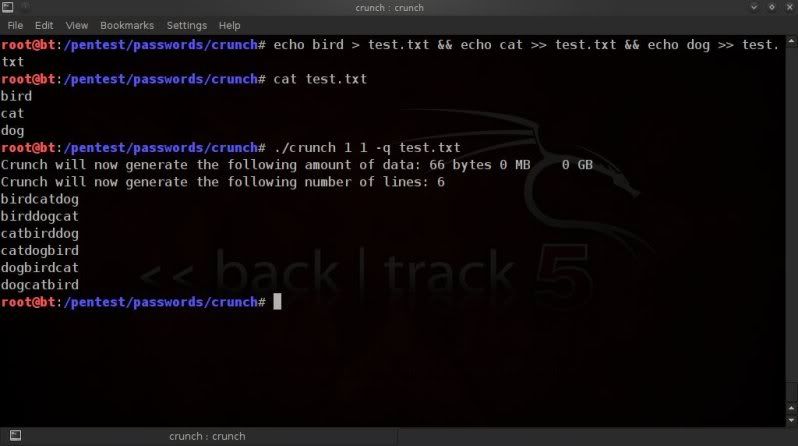
Using the-qswitch, you can create all possible permutations of words in a text file ;
(as always, beware of the possible size ! This best done on a 'focussed' wordlist)
As an example, create a small text file with 3 lines and then run crunch over it with the -q option;
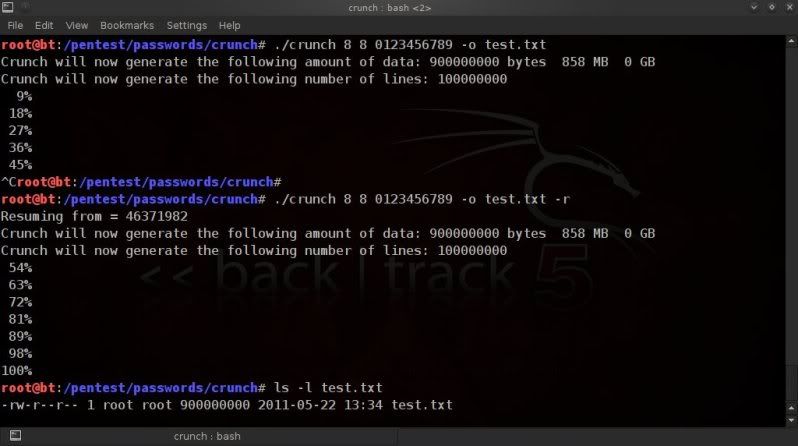
crunch allows a wordlist creation to be stopped and restarted, to do this we use the-r(resume) switch.
For this to work we must type the exact same line followed with the -r switch ;
./crunch 8 8 0123456789 -o test.txt
Stop the creation with a Ctrl C, then restart with ;
./crunch 8 8 0123456789 -o test.txt -r
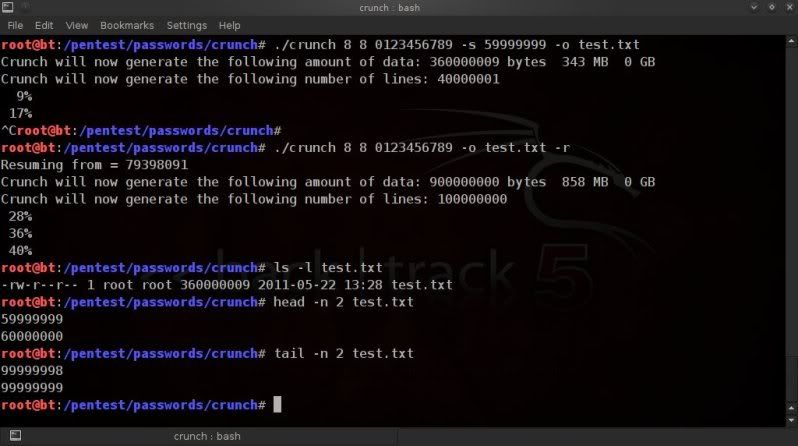
If the wordlist was started from a specific position (see below chapter) then
when resuming the -s switch as well as input must be removed ;
When using this method, the notification on %% complete will not be accurate.
Also, when resuming, crunch will advise that it is generating xx amount of data and xx number of lines.
This information will not be correct as the calculation process thinks it is resuming from a creation of an entire wordlist, whereas it is of course resuming from a wordlist with a certain startblock.
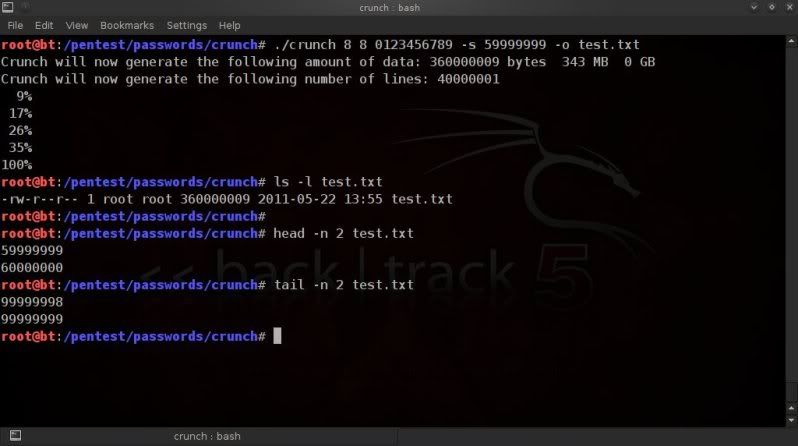
The below picture probably explains it better..
./crunch 8 8 0123456789 -s 59999999 -o test.txt
After cancelling with a Ctrl C, resume would then be done with ; ./crunch 8 8 0123456789 -o test.txt -r
STARTING FROM A SPECIFIC POSITION
If we want to start crunch from a specific position in the wordlist we want to create, we can use the-s
switch to use a specific startblock as starting position for the wordlist.
For instance, if you started creating a wordlist, but had to cancel and resume on a different disk or HDD space ran out.
The temporary file that crunch uses for the wordlist creation is "START" located in the crunch directory
/pentest/passwords/crunch/
You can check this temporary file for the last couple of entries to allow you to move/rename the temp file START
and restart the wordlist creation without losing the work already done.
example ;
./crunch 7 7 0123456789 -o test.txt
> Ctrl + C stopping the wordlist creation,
> check the last couple of entries in the START temporary file ;
tail -n 2 START
> copy or rename the temporary file to a name of your liking;
cp START file1.txt
> restart the wordlist creation from the last noted entry in the temporary file;
./crunch 7 7 0123456789 -s 9670549 -o test.txt
NOTE!crunch will overwrite START when it starts a new wordlist creation process, so be sure to rename START into whatever you want to ensure you don't lose the work already done !
Of course using the starting block can be used for whatever reason, for instance if you are sure that you don't need any list with numbers starting before 59999999 ;
./crunch 8 8 0123456789 -s 59999999 -o test.txt
CREATING CUSTOM PATTERNS
This is where crunch really shines, and in my humble opinion, the most powerful capability that crunch has to offer.
With a minimum amount of information on known or expected patterns and/or possible characters in the passphrase, custom patterns can be created allowing to specify what to place where in the created passhprases.
In doing so the size of the wordlist can be reduced significantly and the wordlist can be tailored to the target in a much more efficient way, which is always to be endeavoured !
To fix a pattern, we use the-tswitch in crunch.
There are fixed symbols used for certain character sets ; @--> Lower case alpha values (or @ will read and print from a specified character set, see further down in post) , --> Upper case alpha values %--> Numeric values ^--> Special characters including 'space'
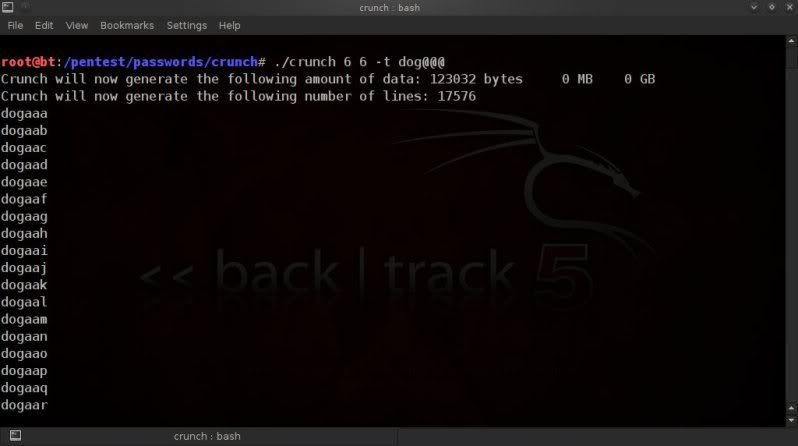
So if we want to create a 6 character, lower alpha wordlist and with a pre-fix of 'dog';
./crunch 6 6 -t dog@@@
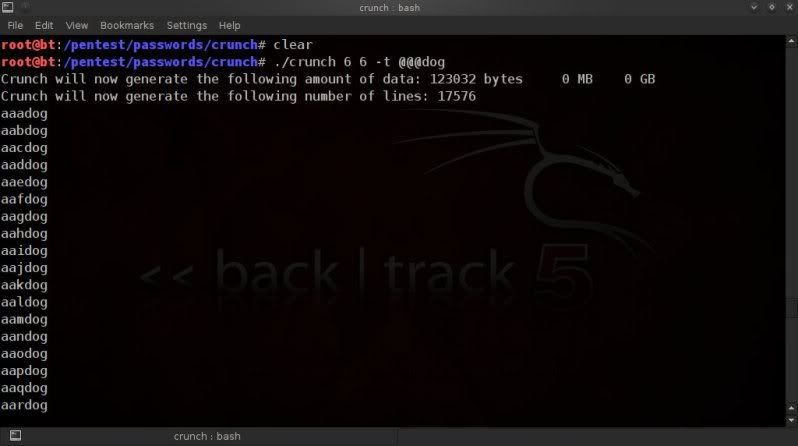
or if we want 'dog' to be appended ;
./crunch 6 6 -t @@@dog
or have 'dog' bang in the middle ;
./crunch 7 7 -t @@dog@@
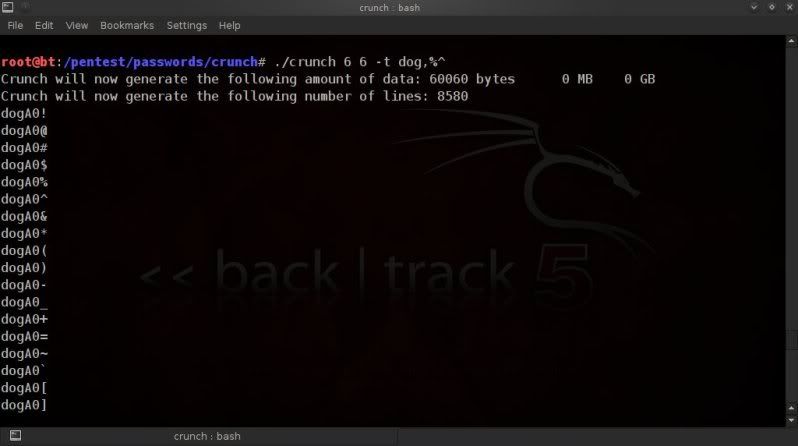
Or 'dog' followed by an upper case alpha, number and symbol;
./crunch 6 6 -t dog,%^
Miscellaneous patterns
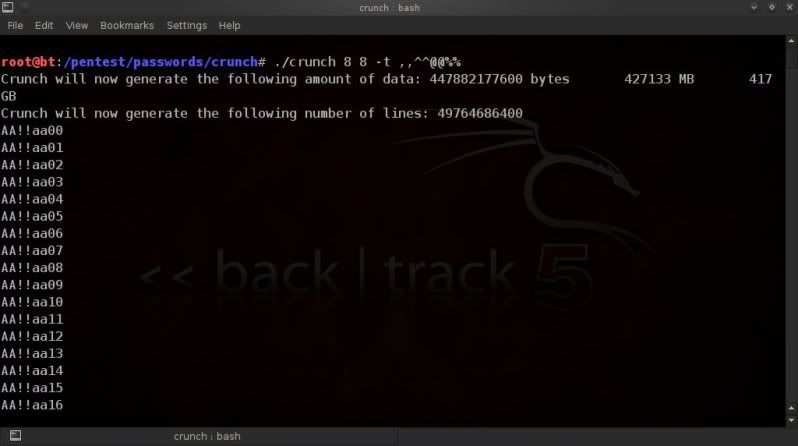
We can also combine the various fixed character sets, for instance, if we want to create an 8 character
wordlist with alpha, numeric and special characters in fixed positions;
./crunch 8 8 -t ,,^^@@%%
Using the fixed character sets you can quickly and easily make 'quick' wordlists for a single character set..
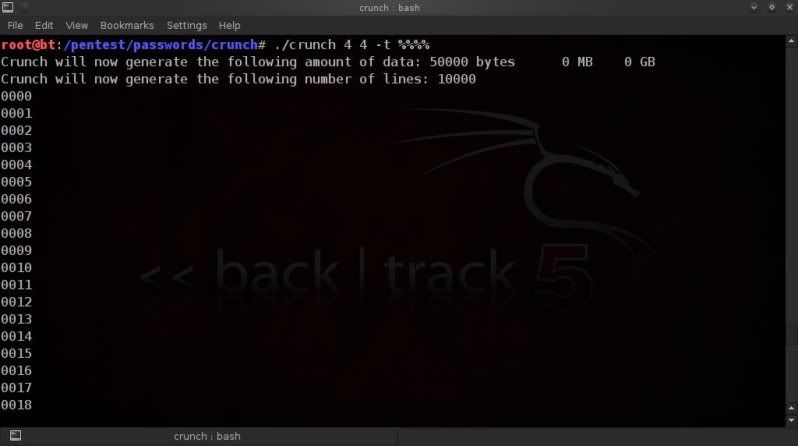
Creating a wordlist with only lower case; ./crunch 4 4 -t @@@@
only numeric; ./crunch 4 4 -t %%%%
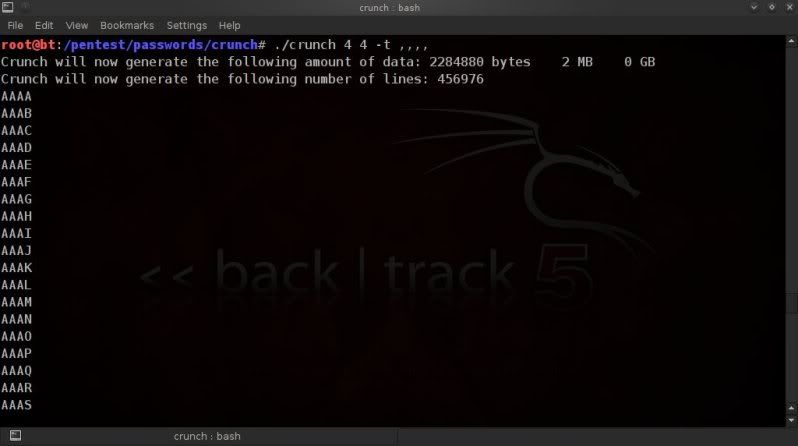
or only uppercase; ./crunch 4 4 -t ,,,,
only special characters;
./crunch 4 4 -t ^^^^
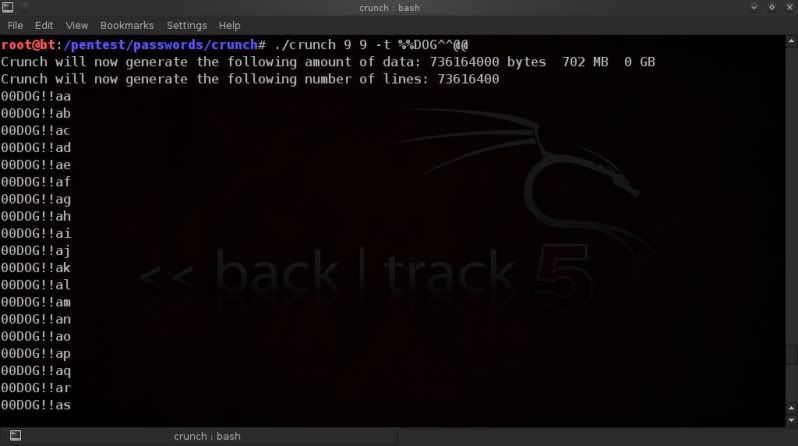
And of course if certain positions and characters are known, it can all be mixed up ; ./crunch 9 9 -t %%DOG^^@@
We can also even go a step further and specify which range of characters should be used for each character type. In the below example ;
lower alpha values to only be ; abcdef
upper alpha values to only be ; ABCDEF
numeric values to only be ; 12345
special characters to only be ; @#$%
We can then specify same by entering these values manually in the command line ;
Note that it is required to enter the custom values in the order ;
lower alpha -- upper alpha -- numeric -- special characters
If there is no specific character range to be used for the character set, then that position should be
completed with a '+' placeholder sign which signifies the usage of the complete standard character set for that set positon. (lower alpha -- upper alpha -- numeric -- special characters)
The below example is using'abcdef' as lower alpha charset, thefull upper case charset,'12345'as numeric charsetand thefull special character charset.
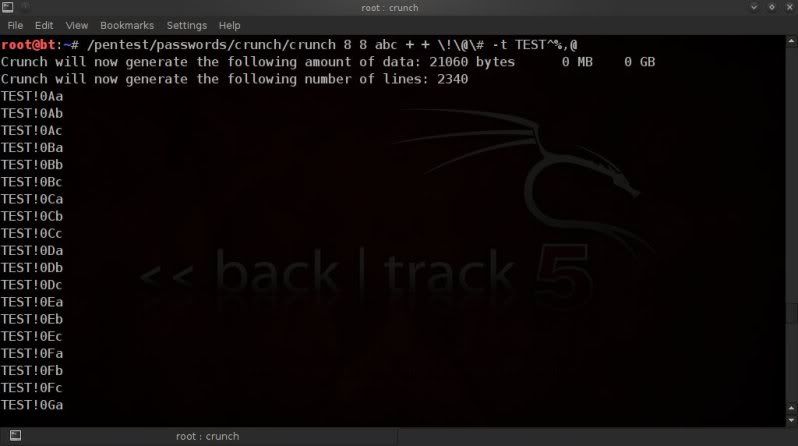
./crunch 8 8 abcdef + 12345 + -t @@,,%%^^
Although in the above examples @ is used as fixed character set for lower case values, we can also use it to specify a manually chosen single set of all types of characters ;
./crunch 8 8 123abcDEF -t TEST@@@@
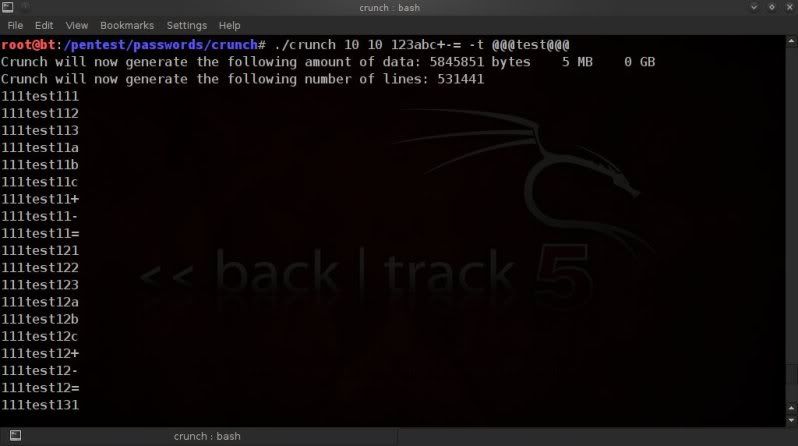
./crunch 10 10 123abc+-= -t @@@test@@@
Remember that certain characters on some occasion require escaping, if in doubt, better to just do it.
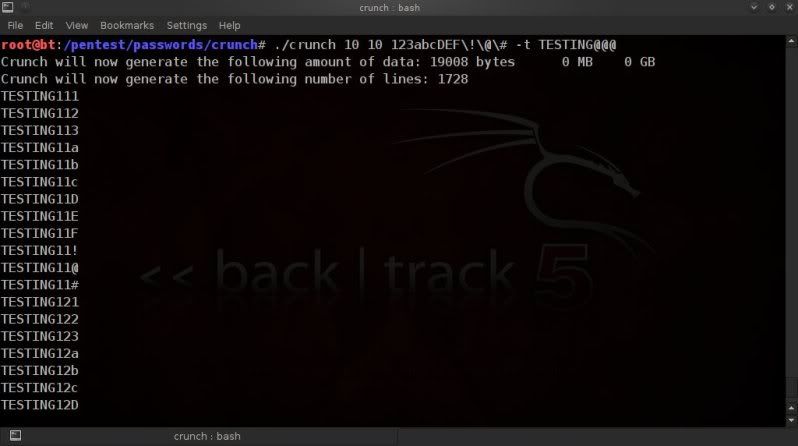
./crunch 10 10 123abcDEF\!\@\# -t TESTING@@@
If you want to include a space in the charset, then enclose the charset in quotes ;
(space at end of charset below)
./crunch "123abcDEF " -t TEST@@@@
Creating telephone lists
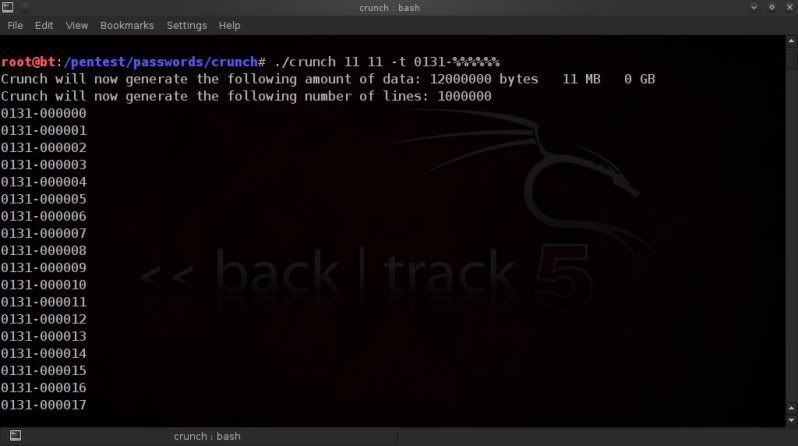
You can also use the -t switch to easily make lists of telephone numbers, so if for instance the telephone number
is usually noted as for instance; 0131-321654, then you could easily create a wordlist of telephone numbers following that same example ;
./crunch 11 11 -t 0131-%%%%%%
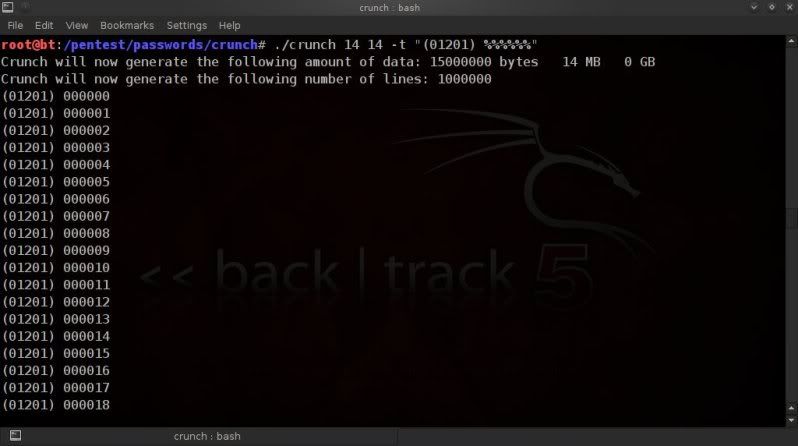
Or if the layout is different, for instance including a space such as "(01201) 111111" this is achieved by putting quotes on the -t pattern as follows (this to ensure that the space is included);
./crunch 14 14 -t "(01201) %%%%%%"
Endless variations are possible.
The possiblities crunch offers to create patterns with such detail give you many options to really fine-tune what you want placed where in your passphrase wordlist and thus reduce the size of your final wordlist.
ESCAPING / FIXING SPECIAL CHARACTERS FOR USE IN PATTERNS
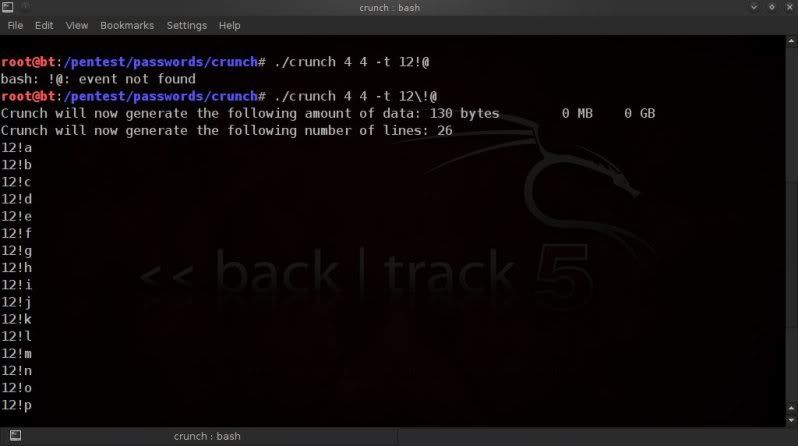
When you start manually defining what to place where with special characters, you will on some occasions need to to 'escape' characters to allow crunch to read them correctly.
This is the case for for instance an exclamation mark!;
./crunch 4 4 -t 12!@
will result in an error.
In order to make it work correctly you must 'escape' the exclamation mark ;
./crunch 4 4 -t 12\!@
As some special characters are used to define character sets, this can cause some limitations when trying to fix positions of certain special characters. Such as wanting to use@as a fixed character ;
./crunch 4 4 -t 012@
or
./crunch 4 4 -t 012\@
This will not fix the character '@' but use it to provide lower case alpha values.
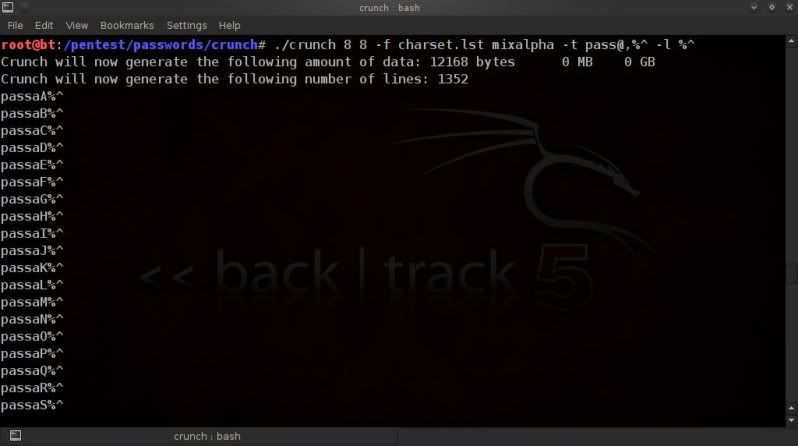
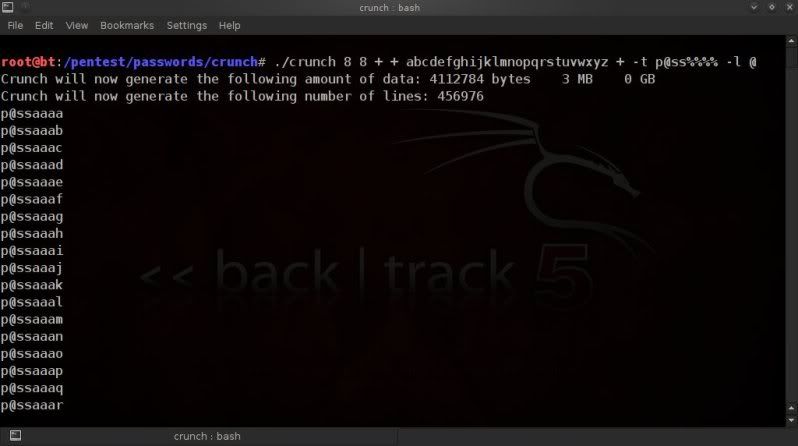
To remedy this to some extent, since crunch v3.0, the new-lswitch can be used to fix the literal character instead of having it refer to a place holder for a specific character set.
Of course this in itself also has limitations as you are not able to to check for all possible lower case alpha
values or passthrough a user defined charset with a fixed setting of the @ character.
The below 2 examples will obviously only return 1 result as all the instances of the @ character will be fixed
as a literal character.
This is an issue that is being looked into and possibly a following update of crunch will have an answer.
Of course there are workarounds for some part; if for instance you wanted a password list to start with "p@ss"
followed by 4 characters of all possible lower case values, you could create a list of 4 characters;
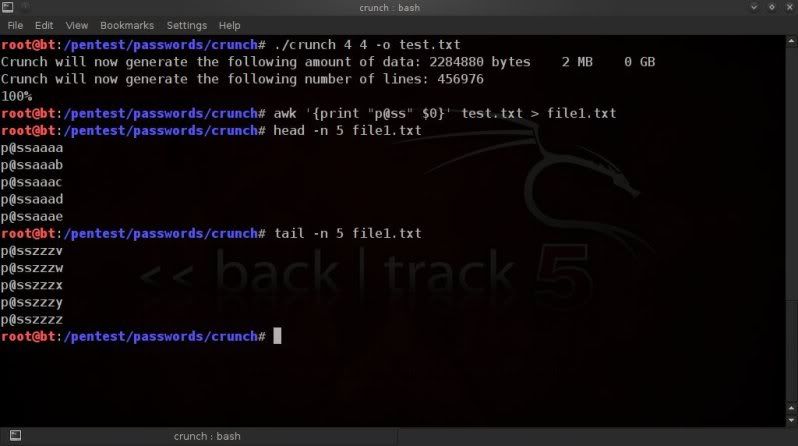
./crunch 4 4 -o test.txt
And then use 'sed' or 'awk' to place the word 'p@ss' in front of each line ;
Using sed ;
sed 's/^/p\@ss/' test.txt > file1.txt
Using awk ;
awk '{print "p@ss" $0}' test.txt > file1.txt
So with a bit of imagination and a couple of oneliners with sed or awk, you should still
be able to create more or less what you want.
edit 25-05-2011
bofh28 has informed me of another workaround which can be used.
You can override the standard characters per placeholder setting by entering a different type of
charset in a different position and then using the placeholder character for that position.
Normally the 3rd position is for numeric values, however if you specify lower case values, it will use these
characters, however you then do need to use the place holder for that position, in this example %.
Confused ? You won't be after this episode of .. ;)
Crunch can be used to pipe passwords through to programs such as aircrack / pyrit / cowpatty etc.
Considering that crunch is now advising the estimated size of wordlists to be created following the command given as well as the wordcount, to have a seamless integration with piping, it is recommended to use the-uoption to supress that information on size, wordcount etc.;
Without using the -u command, it is possible that unexpected errors occur with some programs.
Using the-uoption will result in the creating of the wordlist directly instead of giving the 3 second delay during which the estimated wordlist size and wordcount is shown ;
In examples only testing for 8 character numeric passwords ; aircrack
./crunch 8 8 -t %%%%%%%% -u | aircrack-ng -e SSID -w - /pathto/capfile.cap
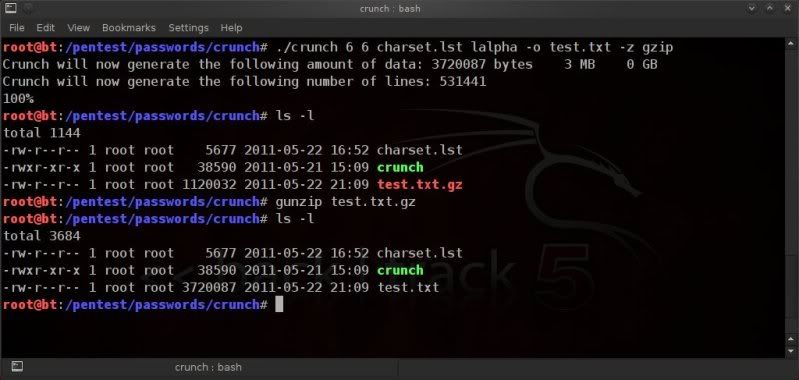
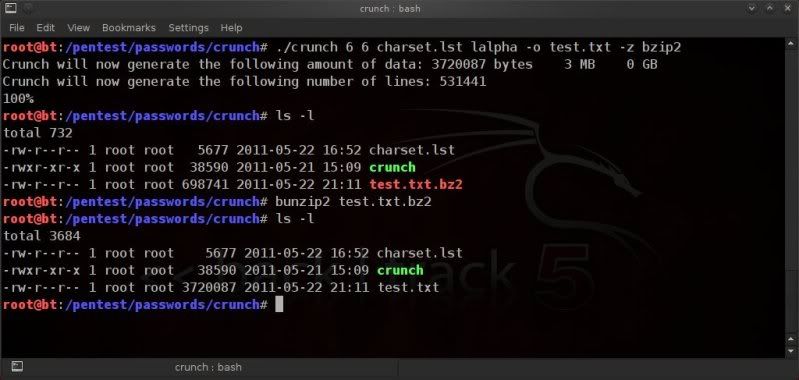
Output files can be compressed with crunch using the-zswitch.
Supported formats are;
> gzip
> bzip
> lzma
Crunch will first create the wordlist and will then compress the wordlist.
Upon the finalisation of the wordlist creation, you will see the 100% being reached
and the 100% denomination will continue to be printed until the compression is complete.
So if you see a continuous 'stream' of 100%, don't worry, the program is not hanging,
the output file is simply being compressed.
It had me guessing when I was testing a compression of a couple of gigabytes.. but I assure you it is the case.
The best level of compression and thus the slowest is obtained with lzma.
The quickest compression, with the lowest level of compression, is obtained with gzip.